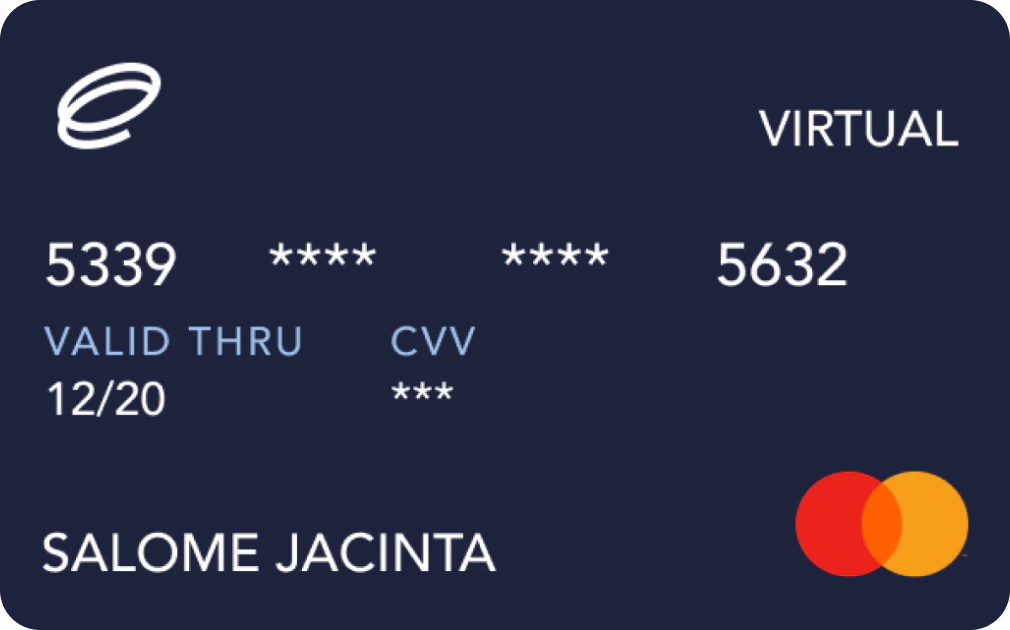
COMPANY detail
EVERSEND Card One multi-currency app
Card Feature Overview.
CARD NAME
EVERSEND CARD
W BONUS
NONE
CASHBACK
0%
REGISTER FEE
$3
NEED KYC
YES
FX FEE
UP TO 3.5%+$0.5
APR
NO
CARD TYPE
VIRTUAL CARD
CARD NETWORK
BLOCKCHAIN
REGION
WALLET TYPE
CUSTODIAL
APPLE PAY
YES
IBAN/SWIFT
YES
ATM LIMIT
$0
DAILY LIMIT
NOT DISCLOSED
GET THE CARD
EVERSEND CARD
| W BONUS | NONE |
|---|---|
| CASHBACK | 0% |
| REGISTER FEE | $3 |
| NEED KYC | YES |
| FX FEE | UP TO 3.5%+$0.5 |
| APR | NO |
| CARD TYPE | VIRTUAL CARD |
| CARD NETWORK | |
| BLOCKCHAIN | |
| REGION | |
| WALLET TYPE | CUSTODIAL |
| APPLE PAY | YES |
| IBAN/SWIFT | YES |
| ATM LIMIT | $0 |
| DAILY LIMIT | NOT DISCLOSED |

EVERSEND CARD
CARD NAME
EVERSEND CARD
W BONUS
NONE
CASHBACK
0%
REGISTER FEE
$3
NEED KYC
YES
FX FEE
UP TO 3.5%+$0.5
APR
NO
CARD TYPE
VIRTUAL CARD
CARD NETWORK
BLOCKCHAIN
REGION

WALLET TYPE
CUSTODIAL
APPLE PAY
YES
IBAN/SWIFT
YES
ATM LIMIT
$0
DAILY LIMIT
NOT DISCLOSED
GET THE CARD
VISIT TODEY.XYZ TO FIND THE RIGHT CRYPTO CARD.
REPORT ERROR
The Real Story on This Card.
PROS
IBAN Available
Multi Currency Wallets
High Level Security
Low Transaction Fees
CONS
Africa-focused
Card Fee: $3
No Cashback Offered
No Physical Card
Fx Fee: 3.5%+$0.5 On Non-USD TX
GENERAL Questions
Where does the Eversend virtual card work?
Are you curious about where you can use your Eversend virtual card? In this article, we'll explore some of the places where you can use your Eversend virtual card, while also highlighting that the possibilities extend far beyond the list provided.
https://help.eversend.co/en/articles/4418882-where-does-the-eversend-virtual-card-work
Eversend Virtual Card Fees
At Eversend, we strive to be as transparent as possible on all transaction fees/charges our users may encounter, so as to give them a good experience when they use our services. Below are the fees:
Virtual card creation(Issuance) fee: $0
Monthly Card Maintenance Fee: We have put in place a 2-card maintenance fee plan. You are welcome to choose the plan that suits you.
$1 Monthly Fee Plan: (starting from the first month you create a card with us, we shall debit you $1 and this will keep happening on every active or frozen card monthly)
$3 One-Time Fee Plan: (Pay $3 once, and you’re done—no more card maintenance fees ever)
https://help.eversend.co/en/articles/8185032-eversend-virtual-card-fees
Virtual card creation(Issuance) fee: $0
Monthly Card Maintenance Fee: We have put in place a 2-card maintenance fee plan. You are welcome to choose the plan that suits you.
$1 Monthly Fee Plan: (starting from the first month you create a card with us, we shall debit you $1 and this will keep happening on every active or frozen card monthly)
$3 One-Time Fee Plan: (Pay $3 once, and you’re done—no more card maintenance fees ever)
https://help.eversend.co/en/articles/8185032-eversend-virtual-card-fees
How to fund/add money to the Eversend USD virtual card
The Eversend virtual card provides a secure and convenient way to handle your online payments and subscriptions. However, it's essential to ensure that your virtual card has sufficient funds before initiating any transactions to the merchants. Please note the distinction between the USD wallet and the USD virtual card; it's important not to confuse the two. The funds must be added to the USD card in order for your card payments to be successful. Here's a concise guide on how to top up your Eversend USD virtual card:
Step 1: Funding Your Eversend Account
To fund your eversend account;
Open the Eversend app and navigate to the "Balances" section.
Choose the wallet you wish to fund and follow the prompts to complete the transaction.
Your funds will reflect in your Eversend account within a few minutes.
After funding your local Eversend wallet, you'll have two options for funding the virtual card: you can either transfer funds directly from your main Eversend wallet to the virtual card, or you can first exchange the funds from the local currency to USD. Opting to exchange the funds to USD beforehand offers an advantage because you'll be able to see the exact USD amount you'll be adding to the card balance.
To fund the virtual card directly from your from your main Eversend wallet;
Navigate to the "Cards" section in the app.
Choose the specific card you want to fund if you have multiple active cards.
Tap on "Fund", you will then see a list of wallets and then select the wallet that has the funds and put in the amount you want to add to the card in that currency.
Enter your account PIN to confirm the transaction.
Your card balance will be updated instantly with the funds.
To fund the virtual card from the USD wallet;
In the "Balances" section, select the wallet you have funded in step 1.
Click on the blue button labeled "Exchange."
Choose the currency you want to exchange to (select USD).
Enter the desired amount and confirm the exchange.
Navigate to the "Cards" section in the app.
Choose the specific card you want to fund if you have multiple active cards.
Tap on "Fund", you will then see a list of wallets and then select the USD wallet, enter the amount in USD that you wish to add to the card balance.
Enter your account PIN to confirm the transaction.
Your card balance will be updated instantly with the funds.
Step 1: Funding Your Eversend Account
To fund your eversend account;
Open the Eversend app and navigate to the "Balances" section.
Choose the wallet you wish to fund and follow the prompts to complete the transaction.
Your funds will reflect in your Eversend account within a few minutes.
After funding your local Eversend wallet, you'll have two options for funding the virtual card: you can either transfer funds directly from your main Eversend wallet to the virtual card, or you can first exchange the funds from the local currency to USD. Opting to exchange the funds to USD beforehand offers an advantage because you'll be able to see the exact USD amount you'll be adding to the card balance.
To fund the virtual card directly from your from your main Eversend wallet;
Navigate to the "Cards" section in the app.
Choose the specific card you want to fund if you have multiple active cards.
Tap on "Fund", you will then see a list of wallets and then select the wallet that has the funds and put in the amount you want to add to the card in that currency.
Enter your account PIN to confirm the transaction.
Your card balance will be updated instantly with the funds.
To fund the virtual card from the USD wallet;
In the "Balances" section, select the wallet you have funded in step 1.
Click on the blue button labeled "Exchange."
Choose the currency you want to exchange to (select USD).
Enter the desired amount and confirm the exchange.
Navigate to the "Cards" section in the app.
Choose the specific card you want to fund if you have multiple active cards.
Tap on "Fund", you will then see a list of wallets and then select the USD wallet, enter the amount in USD that you wish to add to the card balance.
Enter your account PIN to confirm the transaction.
Your card balance will be updated instantly with the funds.